▌▌ SUPPORT & CONTACT
▌▌ SERVER STATUS ONLINE
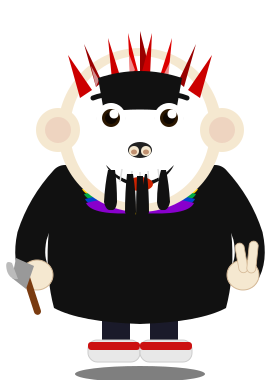
▌▌ JIMMY WATCHES THE FORMS
▌▌ CAPTCHA CHANGES EVERY LOAD
▌▌ NO SPAM — JIMMY WILL KNOW
▌▌ TUTORIALS BELOW — CLICK TO EXPAND
▌▌▌▌ SUPPORT & CONTACT
▌▌ SERVER STATUS ONLINE
▌▌ JIMMY WATCHES THE FORMS
▌▌ CAPTCHA CHANGES EVERY LOAD
▌▌ NO SPAM — JIMMY WILL KNOW
▌▌ TUTORIALS BELOW — CLICK TO EXPAND
▌▌
SUPPORT & CONTACT
Need help with J-FLIX? Fill out the form. The captcha changes every single time you load the page or after sending. Tutorials are below — click any section to expand it.
SERVER ONLINE☠ JIMMY ACTIVE
▶ SERVER STATUS
ONLINE
J-FLIX SERVER
ONLINE
PLEX
ONLINE
SEERR
ONLINE
KAVITA
ONLINE
BOOKSEERR
▶ CONTACT J-FLIX
Response Time
Messages are usually answered within 24 hours. Include your service name and what you need so Jimmy doesn't have to guess.
Security
▶ CSRF token — stops cross-site forgery
▶ Two hidden honeypots — stops most bots
▶ Random math captcha — changes every load
▶ Timing & rate limits — blocks rapid spam
▶ Server-side validation — no client tricks
Quick Tips
Check the tutorials below before sending. Most common questions are answered there. Plex, Kavita, Plexamp, Seerr, BookSeerr, and AudioBooks are all covered.
▶ TUTORIALS
Plex — Set Video Quality to Maximum / Original
PLEX
+
By default Plex may transcode or lower your video quality. Follow the steps below for your device to force Original / Maximum quality so you always get the best picture. If you experience buffering after changing these settings, your internet may be the bottleneck — try Auto instead.
🔥 AMAZON FIRE TV STICK
1
Open the Plex app on your Fire TV Stick.
2
Click your profile icon / username in the top-left corner.
3
Select Settings from the dropdown menu.
4
Scroll down and select Quality.
5
Set Adjust Automatically → OFF
6
Set Home Streaming → Maximum
7
Set Remote Streaming → Maximum
8
Back out — Plex will now play files at full quality without transcoding.
📸SCREENSHOT — PLEX SETTINGS MENU
📸SCREENSHOT — QUALITY SETTINGS
📺 ROKU
1
Open the Plex app on your Roku device.
2
Scroll to the bottom of the home screen and select Settings.
3
Open the Video tab.
4
Set Local Quality → Original
5
Set Remote Quality → Original (if buffering, try Auto)
6
Set Direct Play → Auto
7
Make sure Allow Direct Stream is enabled.
8
Press back to save — Roku will now stream at the highest available quality.
📸SCREENSHOT — ROKU PLEX SETTINGS
📸SCREENSHOT — VIDEO QUALITY TAB
🤖 ANDROID TV / GOOGLE TV
1
Open the Plex app on your Android / Google TV device.
2
Click your username top-left → Settings.
3
Scroll to Video Quality.
4
Set Adjust Automatically → Off
5
Set Home Streaming → Maximum
6
Set Remote Streaming → Maximum
7
Back out to save — Plex will now play at full quality for both local and remote content.
📸SCREENSHOT — ANDROID PLEX SETTINGS
📸SCREENSHOT — VIDEO QUALITY SCREEN
📺 LG TV (WEBOS)
1
Open the Plex app on your LG TV.
2
Navigate to Settings from the Plex home screen bottom-left, or press the gear icon on your Magic Remote.
3
Select Video Quality (may also appear as Quality or Streaming Quality).
4
Set Adjust Automatically → Off
5
Set Home Streaming → Maximum
6
Set Remote Streaming → Maximum
7
Back out to save. Note: If quality issues persist on LG, plugging a Fire Stick or Roku into the HDMI port will give better results than the built-in app.
📸SCREENSHOT — LG PLEX SETTINGS
📸SCREENSHOT — QUALITY SETTINGS SCREEN
Kavita — Send Books to Your Kindle
KAVITA
+
Kavita can send ebooks directly to your Kindle. There are two things you need to set up: 1) add your Kindle email address inside Kavita, and 2) whitelist the J-FLIX sending email on your Amazon account. Both steps are required or the book won’t arrive.
📖 STEP 1 — ADD YOUR KINDLE ADDRESS IN KAVITA
1
Log into Kavita and click your profile icon in the top-right corner.
2
Select User Settings from the dropdown.
3
Click the Devices tab.
4
Click + Add to add a new device.
5
Device Name — type anything you want, e.g. My Kindle
6
Email — enter your Kindle email address (ends in @kindle.com). See Step 2 below if you don’t know it.
7
Device Platform — select Kindle from the dropdown.
8
Click Save. Your Kindle will now appear as a send destination when you right-click any ebook in Kavita.
Scroll down to Personal Document Settings and click to expand it.
4
Find the Approved Personal Document E-mail List section.
5
Click “Add a new approved e-mail address”.
6
Enter the J-FLIX sending email address: kavita@j-flix.online — then click Add Address.
7
Done! Amazon will now accept books sent from Kavita to your Kindle. Send yourself a test book to confirm it works.
📸SCREENSHOT — PERSONAL DOCUMENT SETTINGS
📸SCREENSHOT — ADD APPROVED EMAIL
⚠ NOTE
Not sure what email J-FLIX sends from? Send Jimmy a message using the support form below and he’ll give you the exact address to whitelist.
Plexamp — Install & Setup
PLEXAMP
+
Plexamp is a dedicated music player for your J-FLIX music library. It works on Windows, iPhone, and Android. You just need your Plex account login — the app finds J-FLIX automatically. A Plex Pass subscription is required to use Plexamp.
Run the downloaded .exe installer and follow the prompts. Plexamp installs like any normal Windows app.
4
Launch Plexamp from your Start Menu or Desktop.
5
Click Sign In and log in with your Plex account (same email & password you use for J-FLIX).
6
Plexamp will automatically detect your J-FLIX server. Select it when prompted.
7
Select your Music library and start listening. That’s it!
📸SCREENSHOT — PLEXAMP DOWNLOAD PAGE
📸SCREENSHOT — SIGN IN SCREEN
📸SCREENSHOT — SERVER & LIBRARY SELECT
🍎 IPHONE (iOS)
1
Open the App Store on your iPhone and search for “Plexamp”.
2
Tap Get to download and install the app. It’s free to install — Plex Pass is required to use it.
3
Open Plexamp and tap Sign In.
4
Log in with your Plex account (same email & password you use for J-FLIX).
5
Your J-FLIX server will appear automatically. Tap it to connect.
6
Select your Music library and you’re good to go. Browse, play, and download for offline listening.
📸SCREENSHOT — APP STORE PLEXAMP
📸SCREENSHOT — SIGN IN & SERVER SELECT
🤖 ANDROID
1
Open the Google Play Store on your Android device and search for “Plexamp”.
2
Tap Install to download the app. Free to install — Plex Pass required.
3
Open Plexamp and tap Sign In.
4
Log in with your Plex account (same email & password you use for J-FLIX).
5
Your J-FLIX server will appear automatically. Tap it to connect.
6
Select your Music library — browse, play, and download tracks for offline listening.
📸SCREENSHOT — PLAY STORE PLEXAMP
📸SCREENSHOT — SIGN IN & SERVER SELECT
⚠ PLEX PASS REQUIRED
Plexamp requires an active Plex Pass subscription. If you get a “Plex Pass required” message after signing in, contact Jimmy and he’ll sort it out.
Seerr — Login & Request Movies / TV Shows
SEERR
+
Seerr is how you request movies and TV shows to be added to J-FLIX. Just log in with your Plex account, search for what you want, and hit Request. Jimmy gets notified and approves it — then it downloads and shows up in Plex automatically.
A Plex login window will pop up. Enter your Plex email and password and click Sign In.
4
You’ll be taken to the Seerr dashboard showing movies and TV shows already available on J-FLIX.
📸SCREENSHOT — SEERR LOGIN PAGE
📸SCREENSHOT — SEERR DASHBOARD
🎬 REQUESTING A MOVIE
1
Click the Search icon (magnifying glass) at the top of the page.
2
Type the name of the movie you want and hit Enter.
3
Click on the movie from the search results to open its detail page.
4
Click the Request button. If it shows Available in green, the movie is already on J-FLIX — go watch it!
5
A confirmation popup will appear — click Request to confirm.
6
The status will change to Pending. Jimmy will approve it and it’ll download automatically. You’ll see it in Plex once it’s ready.
📸SCREENSHOT — SEARCH & MOVIE PAGE
📸SCREENSHOT — REQUEST BUTTON & CONFIRM
📺 REQUESTING A TV SHOW
1
Click the Search icon and type the name of the TV show.
2
Click the show from the results to open its detail page.
3
Click the Request button.
4
A popup will appear letting you choose which seasons to request — select the ones you want or pick All Seasons.
5
Click Request to confirm. The status will show Pending until Jimmy approves it.
6
Once approved and downloaded, the show will appear in Plex. New episodes of ongoing shows are grabbed automatically as they air.
📸SCREENSHOT — TV SHOW PAGE
📸SCREENSHOT — SEASON SELECT & CONFIRM
💡 TIPS
If a title shows Available it’s already on J-FLIX — just open Plex and watch it.
If a title shows Pending someone already requested it — no need to request again.
Requests are usually processed within 24 hours. Faster if you say Whoop Whoop in the support form.
BookSeerr — Login & Request eBooks / Audiobooks
BOOKSEERR
+
BookSeerr is how you request eBooks and Audiobooks to be added to J-FLIX. Search for what you want, hit request, and Jimmy handles the rest — it downloads automatically and shows up in Kavita or AudioBookshelf.
If a book shows Available it’s already on J-FLIX — head to Kavita or AudioBookshelf to read or listen.
If it shows Pending, someone already requested it — no need to request again.
eBooks land in Kavita. Audiobooks land in AudioBookshelf.
Don’t have login credentials? Use the support form below to message Jimmy.
AudioBookshelf — Login & Listen
AUDIO
+
J-FLIX runs its own AudioBookshelf server packed with audiobooks. You can listen right in your browser or use the free mobile app. Progress syncs automatically across all your devices so you never lose your place.
Enter your username and password provided by Jimmy, then click Login.
3
You’ll land on the Home screen showing your library, recently added books, and any books you’ve started.
📸SCREENSHOT — LOGIN PAGE
📸SCREENSHOT — HOME DASHBOARD
🌐 LISTENING IN YOUR BROWSER
1
From the home screen, browse the library or use the Search icon to find a book.
2
Click on a book cover to open its detail page.
3
Click the big Play button to start listening right in your browser. It will resume from where you left off if you’ve listened before.
4
Use the player controls at the bottom to pause, skip, rewind 10 seconds, or change the playback speed.
5
Your progress saves automatically — close the tab and come back anytime, it picks up right where you stopped.
📸SCREENSHOT — BOOK DETAIL PAGE
📸SCREENSHOT — PLAYER CONTROLS
📱 USING THE MOBILE APP
For the best mobile experience, download the free AudioBookshelf app and connect it to J-FLIX.
1
Android: Search “Audiobookshelf” on the Google Play Store and install it. iPhone: Search on the App Store — look for “Audiobookshelf” or the third-party app “Still: for Audiobookshelf”.
2
Open the app and tap Add Server (or the + icon).
3
Enter the server address: https://audiobooks.j-flix.online
4
Enter your username and password and tap Login.
5
Your full J-FLIX audiobook library will load. Tap any book to start listening or download it for offline use.
6
Progress syncs automatically between the app and the browser — start on your phone, continue on your computer, no problem.
📸SCREENSHOT — APP STORE / PLAY STORE
📸SCREENSHOT — ADD SERVER SCREEN
📸SCREENSHOT — MOBILE LIBRARY VIEW
💡 TIPS
You can adjust playback speed — great for getting through longer books faster.
Use the sleep timer to automatically stop playback after a set time.
Download books to your phone for offline listening — perfect for road trips or no-signal areas.
Don’t have login credentials? Use the support form below to message Jimmy.
JIMMY — J-FLIX SUPPORT GREMLIN
"The captcha is different every single time you load this page. On purpose. Bots hate it. Answer it, fill the form, hit send — I'll get back to you. The tutorials are all right here. Click the section, read the thing. If it still doesn't make sense, send me a message and I'll sort it."